Free Online Teleprompter That Follows Your Voice: Read, Record and Never Lose Your Place
Read your script while you look straight at the camera. This free online teleprompter follows your voice, records you as you read, and lets you control everything from your phone. Here is how to set it up and look natural on camera.
In this post
- Why reading to camera feels so hard
- What this free online teleprompter does
- Three ways to scroll: Flow, Auto and Manual
- Flow: the script follows your voice
- Auto: a steady, predictable scroll
- Manual: you are in charge of every word
- Record Mode or Read Mode
- Make it fit your face, your camera and your rig
- Control it from your phone
- Show your script on a second screen
- Share a draft with a colleague
- Your script library
- Recording, takes and what happens next
- Your first video with a free online teleprompter, in five minutes
- Seven habits that make you look natural on camera
- Questions people ask
- Start reading with confidence today
You know the feeling. The camera is on, the light is right, you have something worth saying, and then your mind goes blank halfway through the second sentence. You stop, sigh, and start again. Ten takes later the energy has gone from your face and the video still is not done.
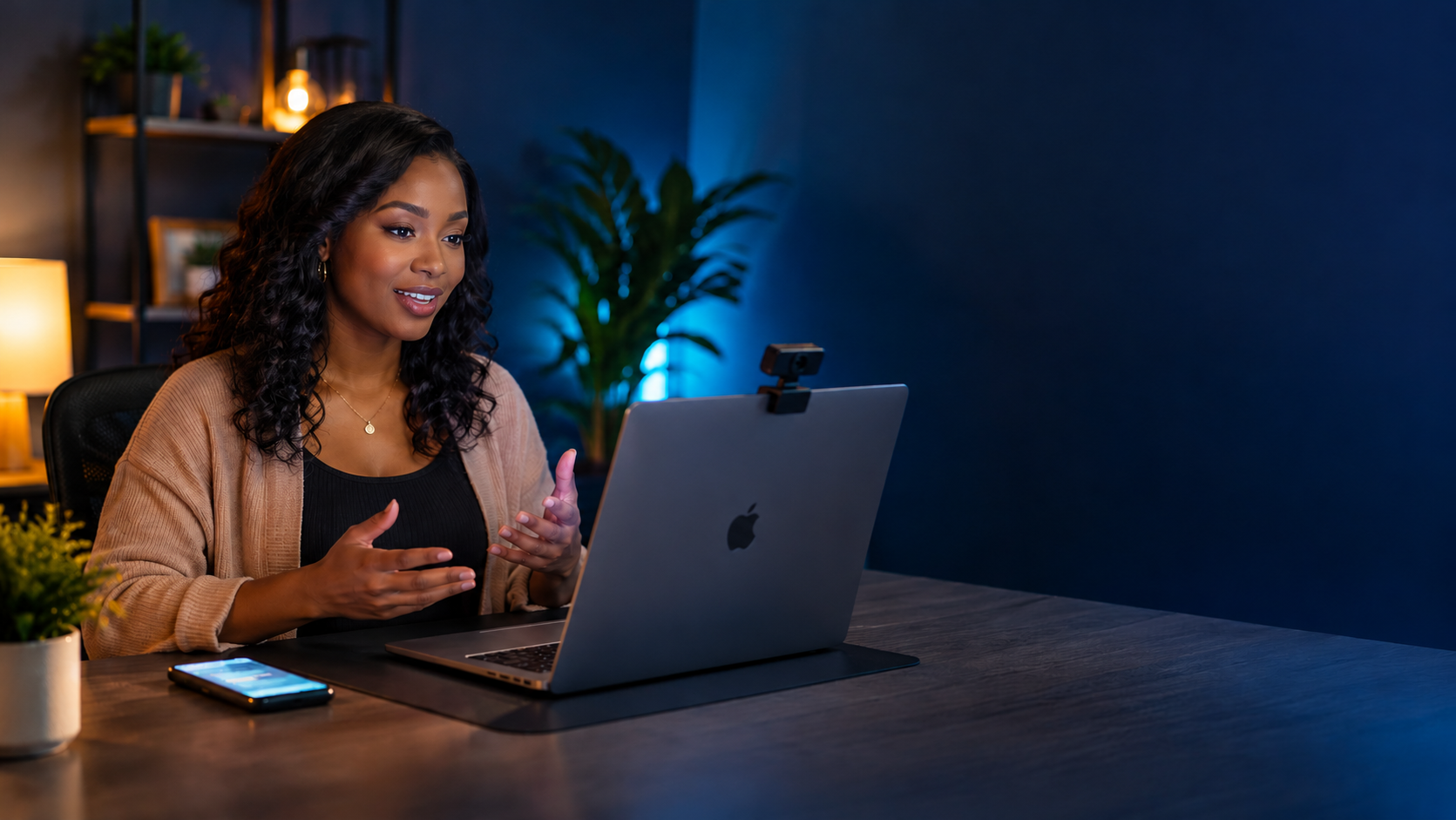
A good free online teleprompter fixes that. Your words scroll on the screen in front of you, right next to the camera, so you can look at your audience and speak with confidence instead of trying to remember every line. The AABStudio teleprompter goes a step further: it can follow your voice as you read, it records you while you read, and it lets you control everything from your phone. You can open it right now without creating an account.
This guide walks through everything it does, how to set it up for your face, your camera and your style, and the small habits that make people look natural when they read to camera.
Why reading to camera feels so hard
Speaking to a lens is not like speaking to a person. There is no nod, no smile, no reaction to tell you that you are doing fine. Most people respond to that silence by either memorising every word, which sounds stiff, or by speaking off the cuff, which runs long and wanders.
Reading from a teleprompter gives you the best of both. You keep the structure of a written script, the exact wording of a product claim or a key quote, and you keep your eyes up where they belong. Newsreaders, presidents and professional presenters have used prompters for decades for exactly this reason. Until recently the hardware was expensive and awkward. Today all you need is the screen you already own.
What this free online teleprompter does
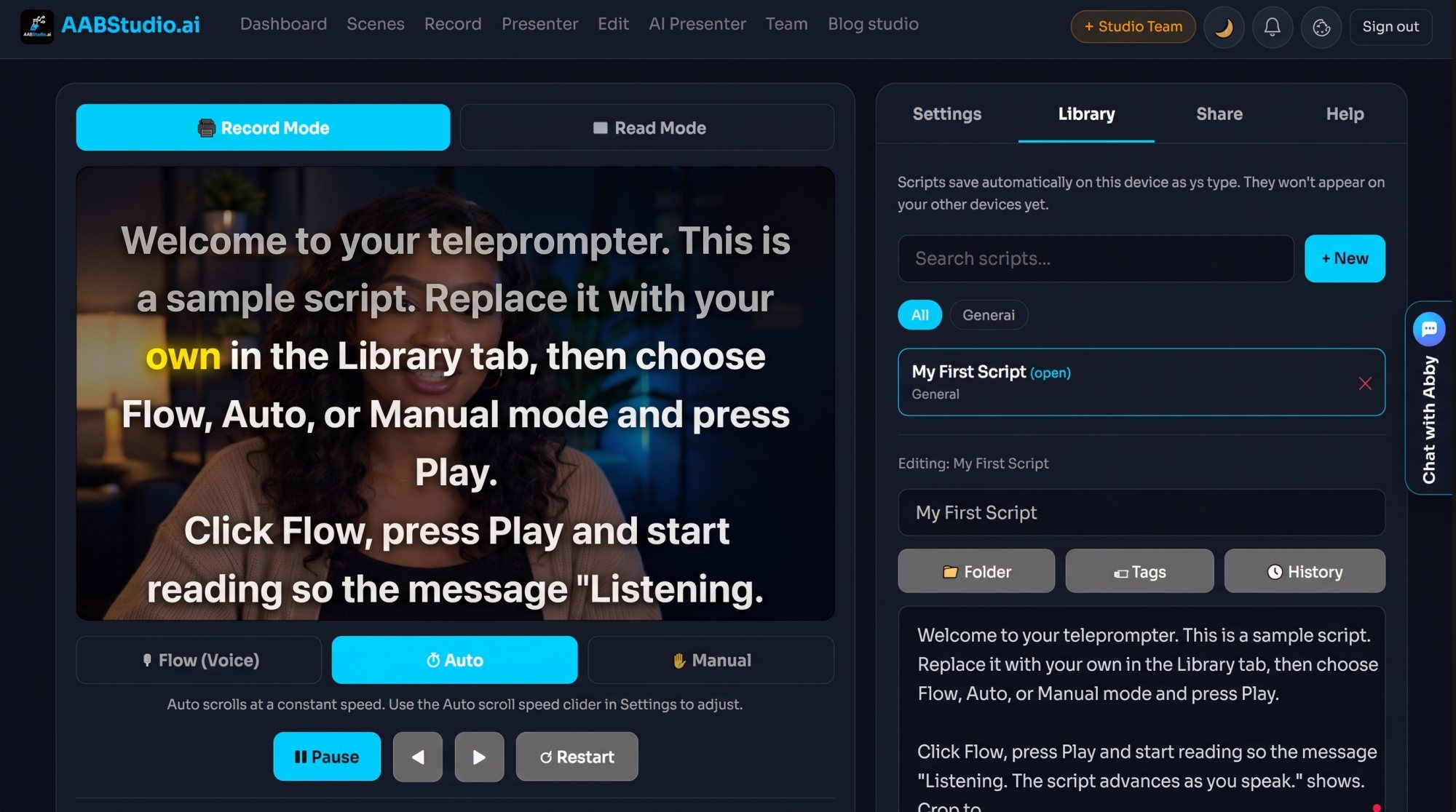
Teleprompter Studio scrolls your script across the screen while you read it, with the word you are on highlighted in gold and the words you have already read gently dimmed. That small detail matters more than it sounds: when you glance away and back, your eyes land exactly where you left off.
Here is what you can do with it:
- Read with or without your camera. Record Mode shows your camera behind the script so you can film yourself. Read Mode shows the script on its own, on a dark background, for live talks, podcasts, speeches or rehearsals.
- Choose how it scrolls. Let it follow your voice, scroll at a steady speed, or move only when you tap.
- Record yourself while you read. Download each take as an MP4 file, or on a paid plan save your takes straight into a project.
- Use your phone as a remote. Play, pause, change speed and jump words from across the room.
- Mirror your script to a second screen such as a tablet, a monitor or a hardware teleprompter rig.
- Keep a library of scripts with folders, tags, search and version history.
Reading is free for everyone and has no limit. You only need an account if you want to record for longer.
Three ways to scroll: Flow, Auto and Manual
Every speaker reads differently, so the teleprompter gives you three scroll modes. You can switch between them at any time, even in the middle of a recording, and the script keeps its place.
Flow: the script follows your voice
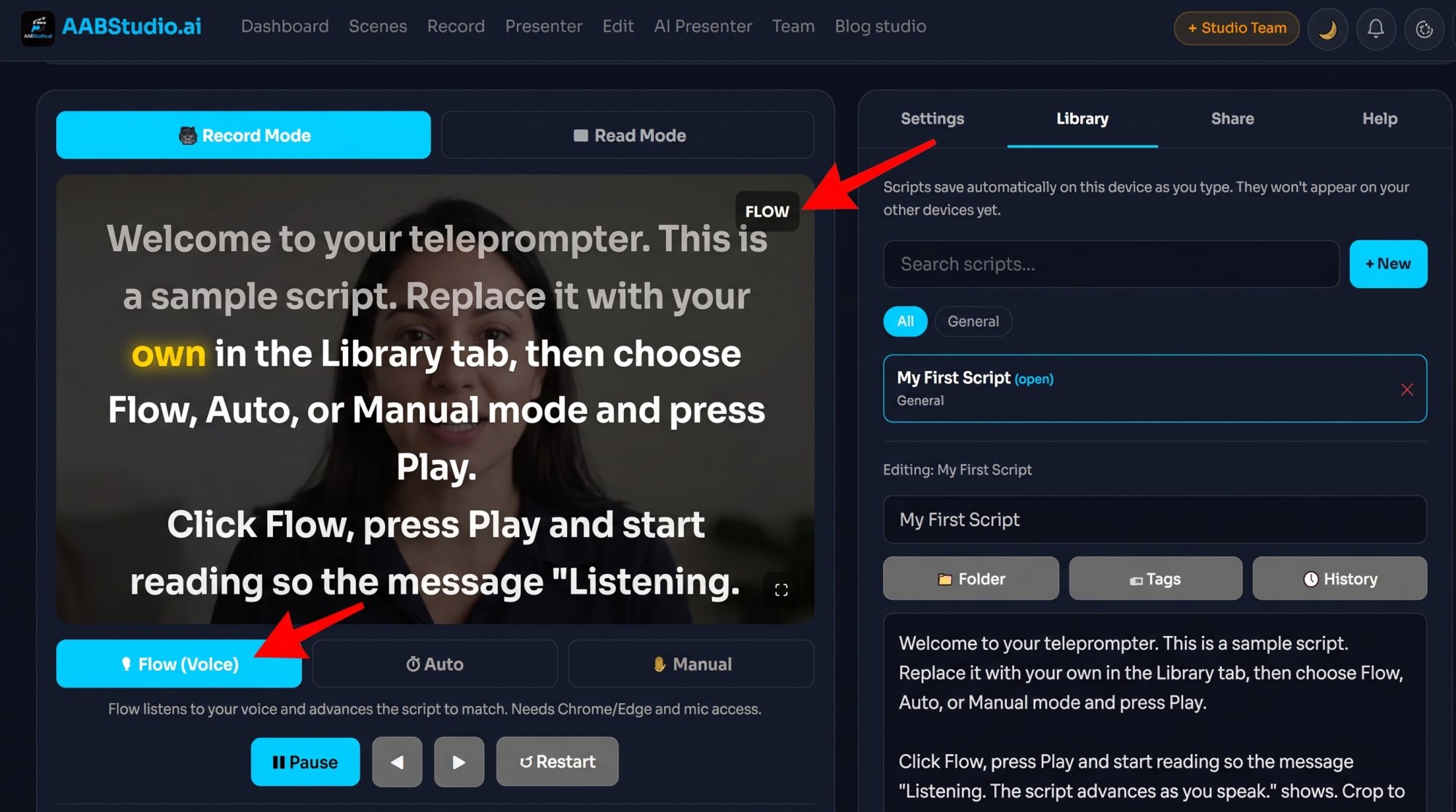
Choose Flow (Voice), press Play and allow the microphone. As you read, the teleprompter listens and moves the highlight to the word after the last one you said, looking up to twenty words ahead. Pause to think and it waits for you. Speed up when you are excited and it keeps up. It is approximate rather than word perfect, and it works in Chrome or Edge, but for most people it feels like magic the first time they try it.
A quick tip: Flow listens in your device's language setting, so set that to the language you are reading.
Auto: a steady, predictable scroll
Choose Auto and the script scrolls at a constant speed you pick on a scale from 1 to 10. The default is 5, and you can change the speed while it is moving. Auto is the most predictable mode and a favourite for people who have found their rhythm.
Manual: you are in charge of every word
Choose Manual and the script only moves when you tell it to. Click any word to jump straight to it, press the arrow buttons or arrow keys to move one word at a time, or tap the spacebar to go forward. Manual is ideal for interviews, live presentations and anything with long pauses.
Record Mode or Read Mode
Record Mode puts your live camera behind the script. Click Enable Camera & Mic, allow access, and you see yourself with your words floating on top. When you press Record, a countdown runs, a red dot and timer appear, and the script can start scrolling on its own at the same moment.
Read Mode turns the camera off completely and shows white text on black. Use it when you are presenting live, reading a speech on stage, recording a podcast, practising a pitch, or when you already film with a separate camera.
One thing people often ask: will the script appear in my video? No. Only your camera and microphone are recorded. The words, the gold highlight, the reading guide line and the shading behind the text are shown on your screen only.
Make it fit your face, your camera and your rig
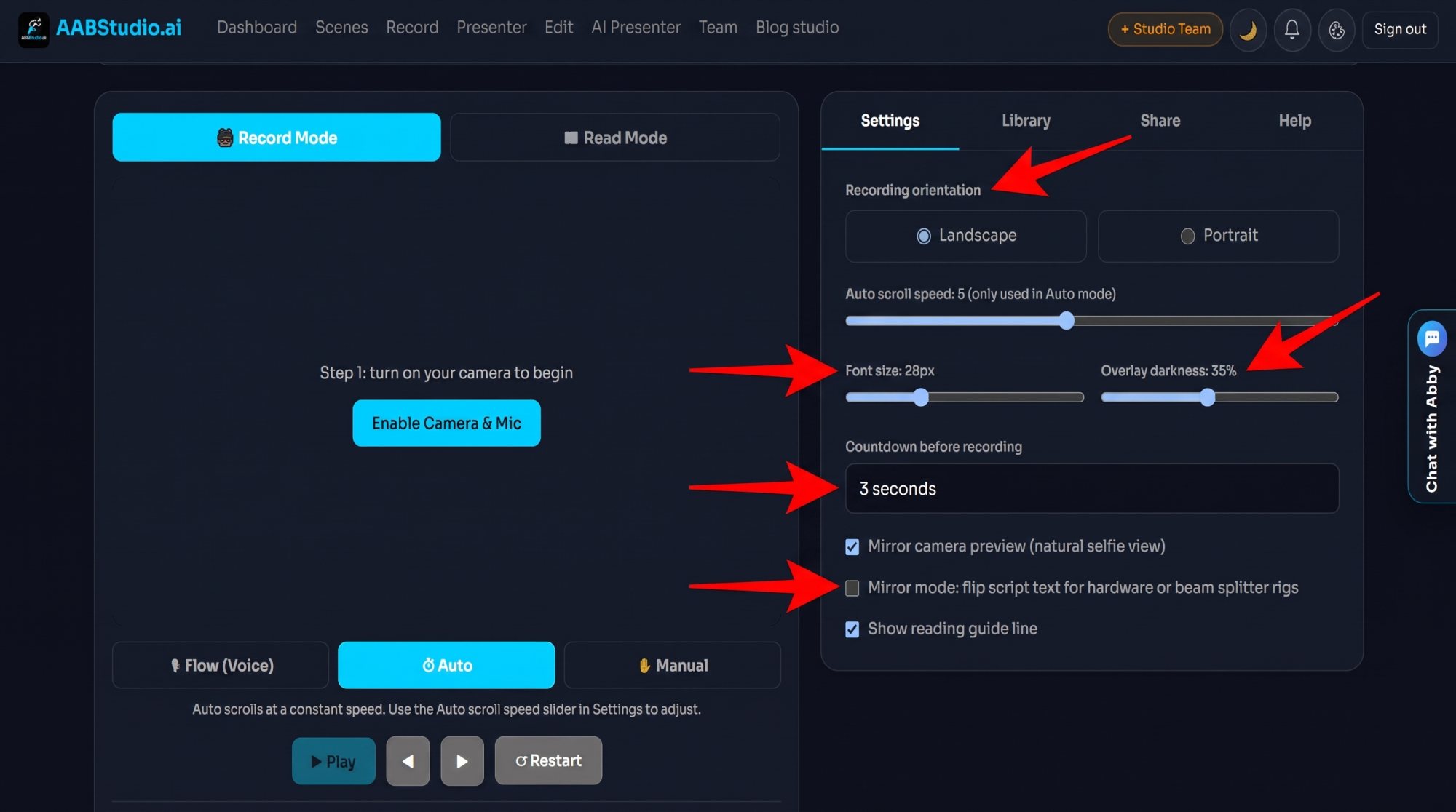
Open the Settings tab and you can tune the prompter in a few seconds:
- Recording orientation. Landscape gives you a 16:9 video for YouTube and websites. Portrait gives you a vertical 9:16 video for Reels, TikTok and Shorts.
- Font size from 16 to 56 pixels. Bigger text lets you sit further from the screen, which keeps your eyes closer to the lens.
- Overlay darkness from 0 to 80 percent, so white text stays easy to read over a bright room.
- Countdown before recording of 3, 5 or 10 seconds, or none at all.
- Mirror camera preview for a natural selfie view. Your recording itself is never flipped.
- Mirror mode flips the script text left to right for beam splitter glass and hardware teleprompter rigs.
- Reading guide line, a dashed line about a third of the way down that shows exactly where your eyes should rest.
Changes apply straight away, so you can adjust while you rehearse.
Control it from your phone
Recording yourself from across a room used to mean walking back and forth to the keyboard. Not any more.
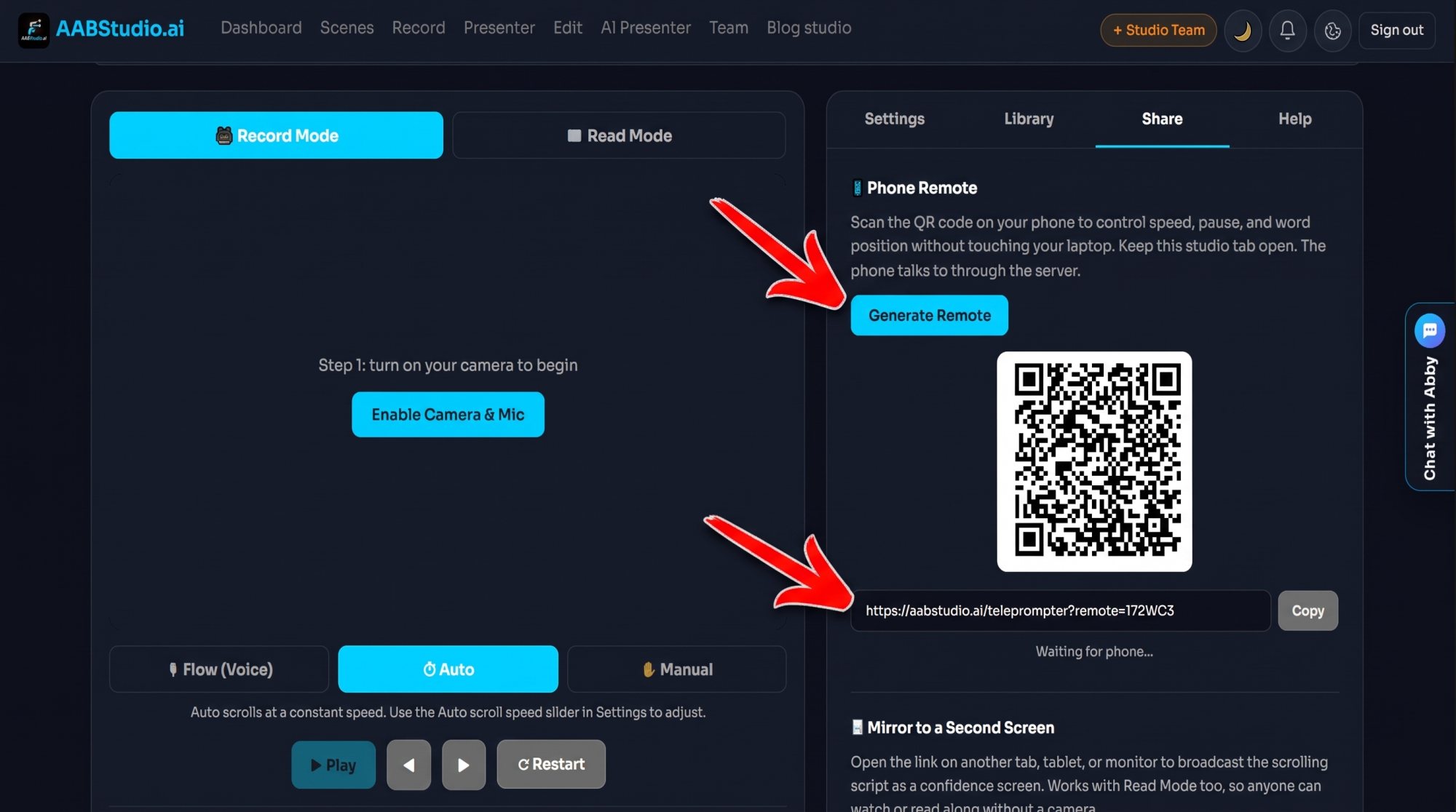
Open the Share tab, click Generate Remote, and scan the QR code with your phone. The Teleprompter Remote opens on your phone with big buttons for Play and Pause, Previous Word, Next Word, Restart Script and two Speed buttons to go faster or slower. Your phone does not need to sign in, and it does not need to be on the same WiFi: it works on mobile data too. Keep the teleprompter open on your computer and you are ready.
Treat the remote link like a password. Anyone who has it can control your prompter while it is open, so only send it to yourself or people you trust.
Show your script on a second screen
Click Generate Mirror Link and open it on a tablet, a second monitor or another tab. It shows your script in large white text on black, following the current word as you go. This is perfect for a monitor placed under your camera, a tablet in a teleprompter rig, or a screen facing a speaker on stage.
Share a draft with a colleague
Click Generate Shared Draft Link to send your script to someone else. They can open it and edit it without signing in, which makes quick reviews easy. Hand it over one person at a time, because whoever saves last wins.
Your script library
The Library tab keeps all your scripts in one tidy place.
- Click New, give the script a title, and type or paste your words. The prompter updates live as you type.
- Your script saves automatically a moment after you stop typing.
- Put scripts in folders and add tags to keep series and clients apart.
- Search by title to find a script in seconds.
- Open History to bring back any of the last 30 versions of a script, which is a lifesaver when a late edit goes wrong.
Scripts are stored on the device you write them on, so if you work across several computers, use copy and paste or a Shared Draft link to move a script.
Recording, takes and what happens next
After you press Stop, a preview appears straight away. Watch the take back, then click Download Recording to save it as an MP4, or Save to Device on a phone to send it to your photos.
Recording time depends on how you use the teleprompter:
- Guests can record 1 minute a day.
- Free accounts can record 2 minutes a day.
- Any paid plan records without a daily limit.
Reading your script is always unlimited.
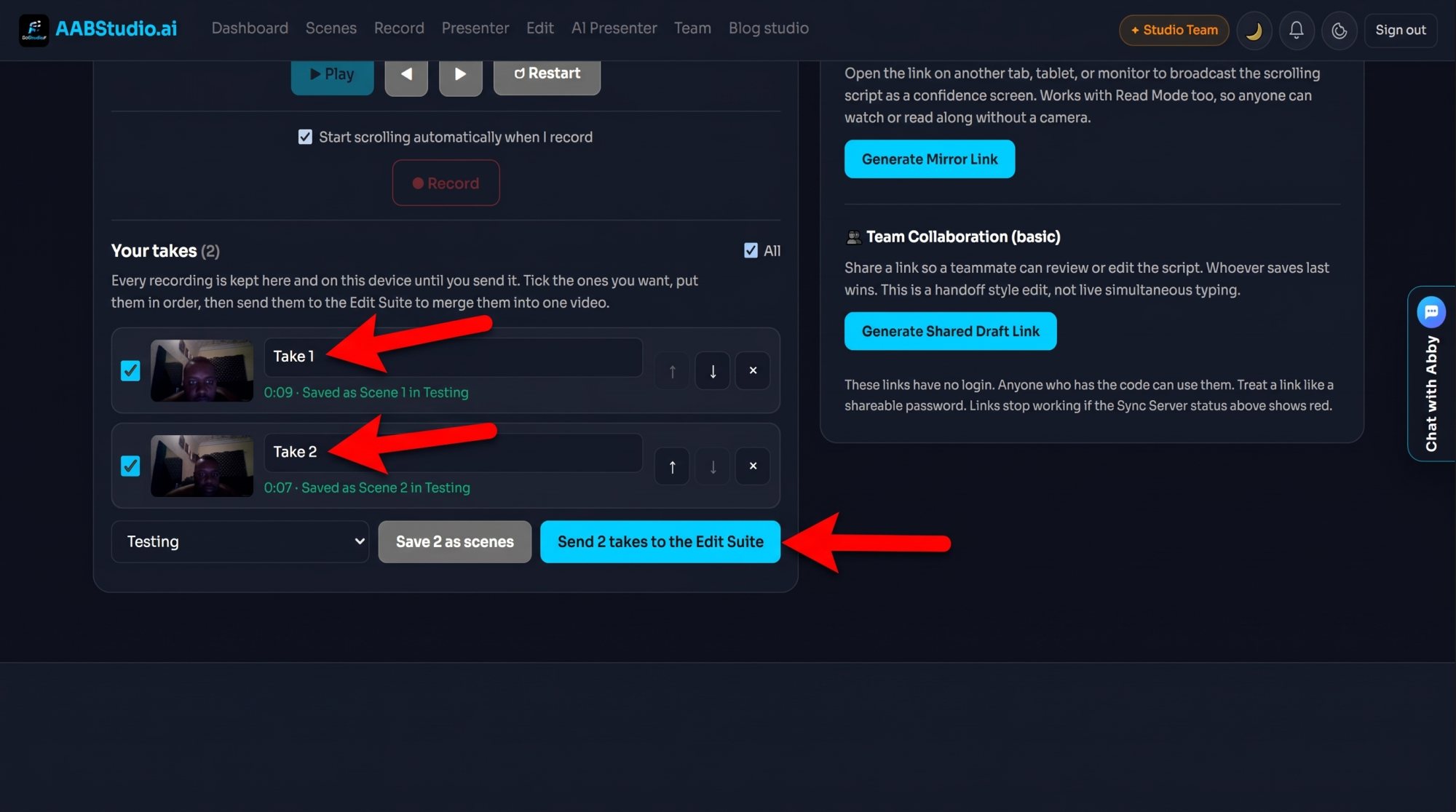
On a paid plan, every take you record goes into a list called Your takes, which survives a page reload or a dropped connection. Tick the takes you like, put them in order, pick a project, and choose Save as scenes or Send to the Edit Suite. Sent takes arrive on the main video track one after another, already joined, so you can go straight to trimming, adding music and captions. You can even make a brand new project from your takes in one step. Saving takes uses no credits.
Your first video with a free online teleprompter, in five minutes
- Open the teleprompter and choose Record Mode.
- Click Enable Camera & Mic and allow access.
- Open the Library tab and paste your script.
- Pick Flow, Auto or Manual, then press Record.
- Press Stop, watch the preview, and download or save your take.
That is it. No software to install, no account needed to start.
Seven habits that make you look natural on camera
- Write for the ear, not the eye. Short sentences. Everyday words. Read your script out loud once before you record and change anything you trip over.
- Keep the text close to the lens. Place the teleprompter window at the top of your screen, right under your camera, so your eyes barely move.
- Make the text bigger than you think. A larger font lets you sit back from the screen, and from further away the small movements of your eyes disappear.
- Use blank lines as breathing marks. Blank lines show as small gaps in the script, which are natural places to pause.
- Start a little slower. In Auto, speed 4 or 5 suits most people. Nerves make us rush; the scroll keeps you steady.
- Record in short sections. Three good takes of a minute each are easier to get than one perfect three minute take, and on a paid plan you can join them in order with one click.
- Smile before you start. The countdown gives you a few seconds. Use them to breathe, relax your shoulders and smile. It shows in the first sentence.
Questions people ask
Do I need an account to use the free online teleprompter?
No. Reading is free for everyone and needs no account. Recording is limited to 1 minute a day for guests and 2 minutes a day on a free account, and is unlimited on any paid plan.
Does it work on my phone?
Yes. On phones and tablets the page stacks neatly, with the video on top and the tabs below. Choose Portrait for vertical video.
Can I flip the text for a teleprompter mirror?
Yes. Tick Mirror mode in Settings and the script flips so it reads correctly in the glass.
Will my script show up in the recording?
No. Only your camera and microphone are recorded.
Does voice scrolling work in every language?
Flow matches the words you say to the words in your script and works best with languages written in the Latin alphabet. For scripts in other alphabets, Auto or Manual work perfectly.
Can I control it without touching the computer?
Yes. Use the phone remote from the Share tab, or the keyboard: spacebar to play and pause, arrow keys to move word by word.
Start reading with confidence today
The best video is the one you actually finish. Open the free online teleprompter, paste your script and press play. When you are ready to turn your takes into finished videos, create a free account or compare the plans to record without limits and send your takes straight to the Edit Suite.
Presenting to a room rather than a camera? Read how to use your phone as a presentation remote that draws on the big screen. Making videos with colleagues? See how Studio Team brings video collaboration into one shared workspace.
Share this post
Was this post helpful?
Be the first to rate it.


Comments