
Studio Team: Video Collaboration in One Shared Workspace
One workspace, one credit pool, one bill. See how Studio Team gives writers, presenters and editors real video collaboration, how shared credits and team usage work, and how the owner stays in control.

In this post
- What Studio Team gives you
- Set up your team in minutes
- Two clear roles
- How shared credits work
- See exactly what your team is doing
- Video collaboration in practice: how a team makes a video
- Built in control and safety
- Who Studio Team is for
- Studio Team or an individual plan?
- Questions people ask
- Bring your team into one studio
Making a video as a team usually looks something like this. The script lives in one document, the recordings sit on someone's laptop, the edit happens on another computer, and the final file travels by email with a name like "final_v7_REAL_final.mp4". Somebody pays for five separate accounts, nobody knows who used what, and when a colleague leaves, half the work leaves with them.
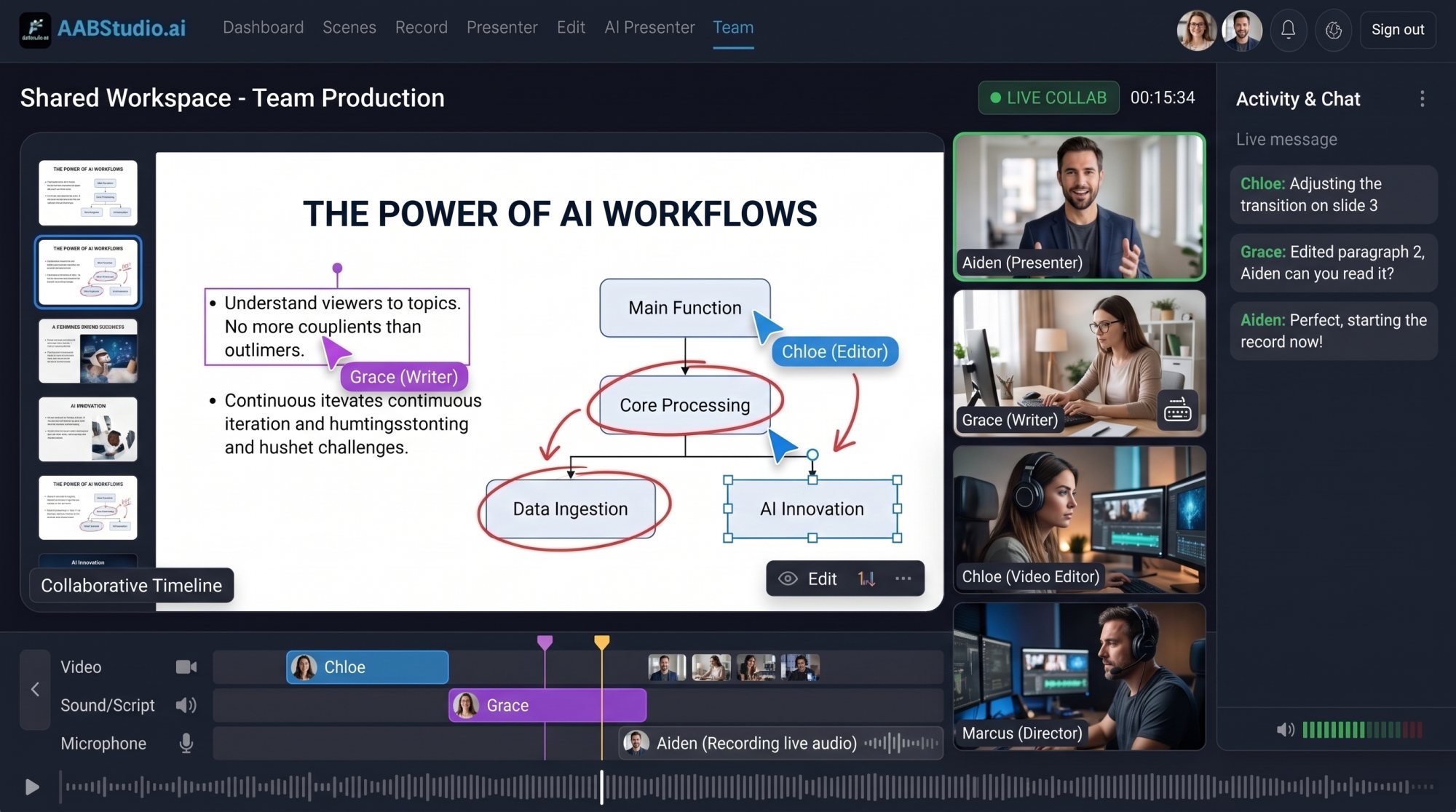
Studio Team puts all of that in one place. It is AABStudio's plan for real video collaboration: one shared workspace where every member can open and edit every team project, one pool of credits paid for by the team owner, and one bill. Writers, presenters and editors work on the same projects, with the same tools, at the same time.
This guide explains exactly how it works, from setting up your team in a few minutes to tracking who did what at the end of the month.
What Studio Team gives you
Studio Team includes everything in the Pro Studio plan, and adds the things a team actually needs:
- A shared team workspace. Every team project appears in every member's Projects list, and every member can open and edit it.
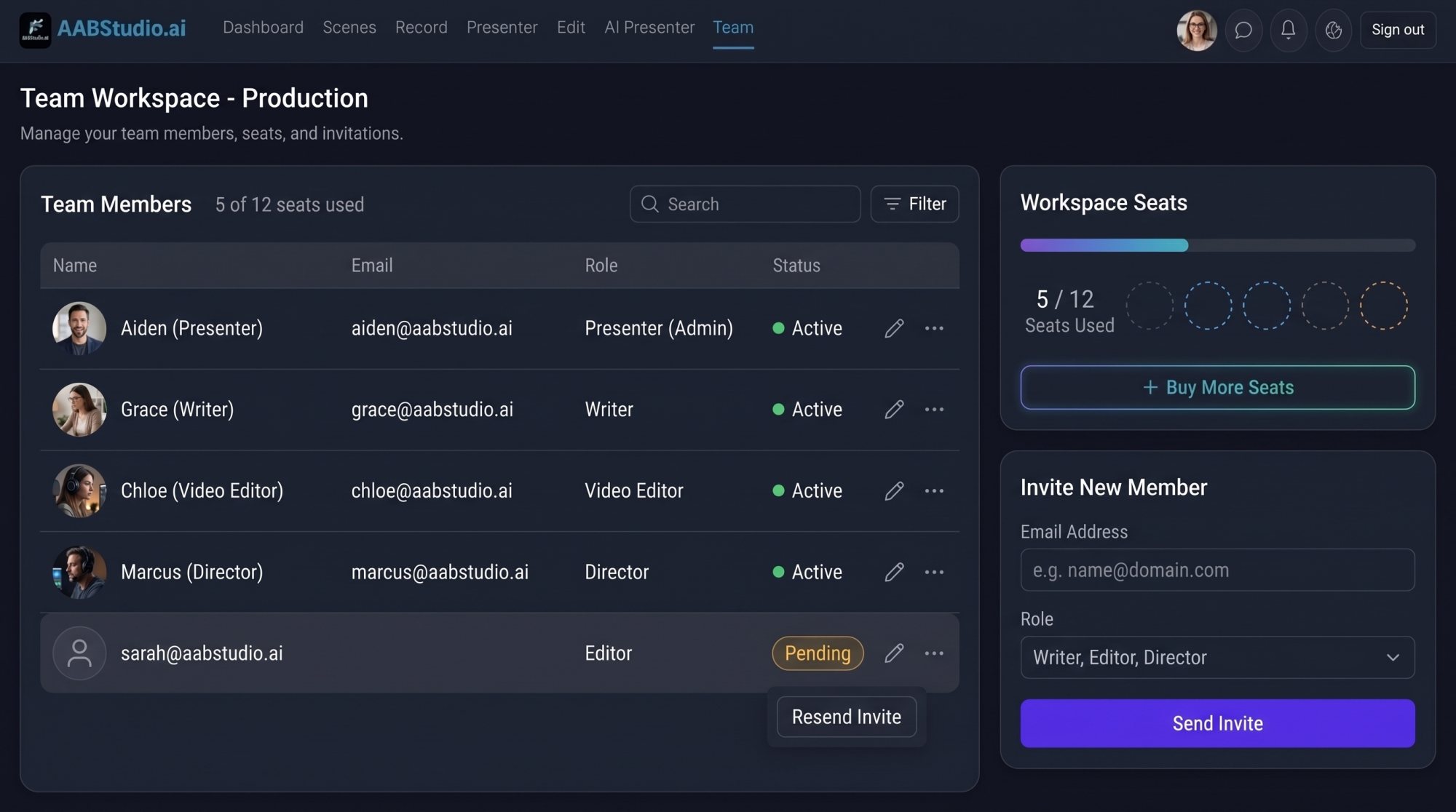
- Three seats included, with more available for a monthly fee each.
- One shared credit pool. The team gets a monthly allowance of credits, with more added for every extra seat, and members spend from it whenever they use a feature that costs credits.
- The Presenter Screen for every seat, including the phone remote and the Presentation Studio.
- Centralised billing. The owner pays once. Members do not need their own subscription.
- Team usage figures so the owner can see who recorded, exported and spent what.
- Priority support.
Current prices and seat costs are always on the pricing page.
Set up your team in minutes
- Choose Studio Team on the pricing page and subscribe.
- Open Team from the top menu. Your team is created automatically the first time you open it, named after you (for example "Sam's team"), and you become its owner. You can rename it whenever you like.
- Your existing projects move into the team, so members can start working on them straight away.
- Under Invite someone, type a colleague's email and click Send invite.
Each person gets an email with a link to accept. If they already have an account, they click Accept and join team. If not, they create a free account with the invited email address. Invites last seven days and hold a seat until then, and you can Resend or Cancel them at any time.
Two clear roles
Studio Team keeps permissions simple, so nobody has to guess who can do what.
The owner is the Studio Team subscriber. The owner can rename the team, invite people, resend and cancel invites, remove members, see team usage, and buy extra credits. The owner pays for the plan.
Members can open and edit every team project and use the shared credits. They get every Studio Team feature through the team, so their billing page simply says Team member. A member can leave the team at any time.
How shared credits work
Instead of everyone buying credits separately, the team has one shared pool held on the owner's account. The balance shows as Shared credits on the Team page.
When a member uses a paid feature, the credits come from the pool. Nothing is hidden: in the owner's credit history, every credit a member used is tagged with their name, such as Used by Sam K., while members see what they personally used from the team pool. If the pool runs low, nothing is charged until the owner tops it up from Billing or the next monthly credits arrive.
That makes budgeting easy. One balance, one bill, and a clear record of where every credit went.
See exactly what your team is doing
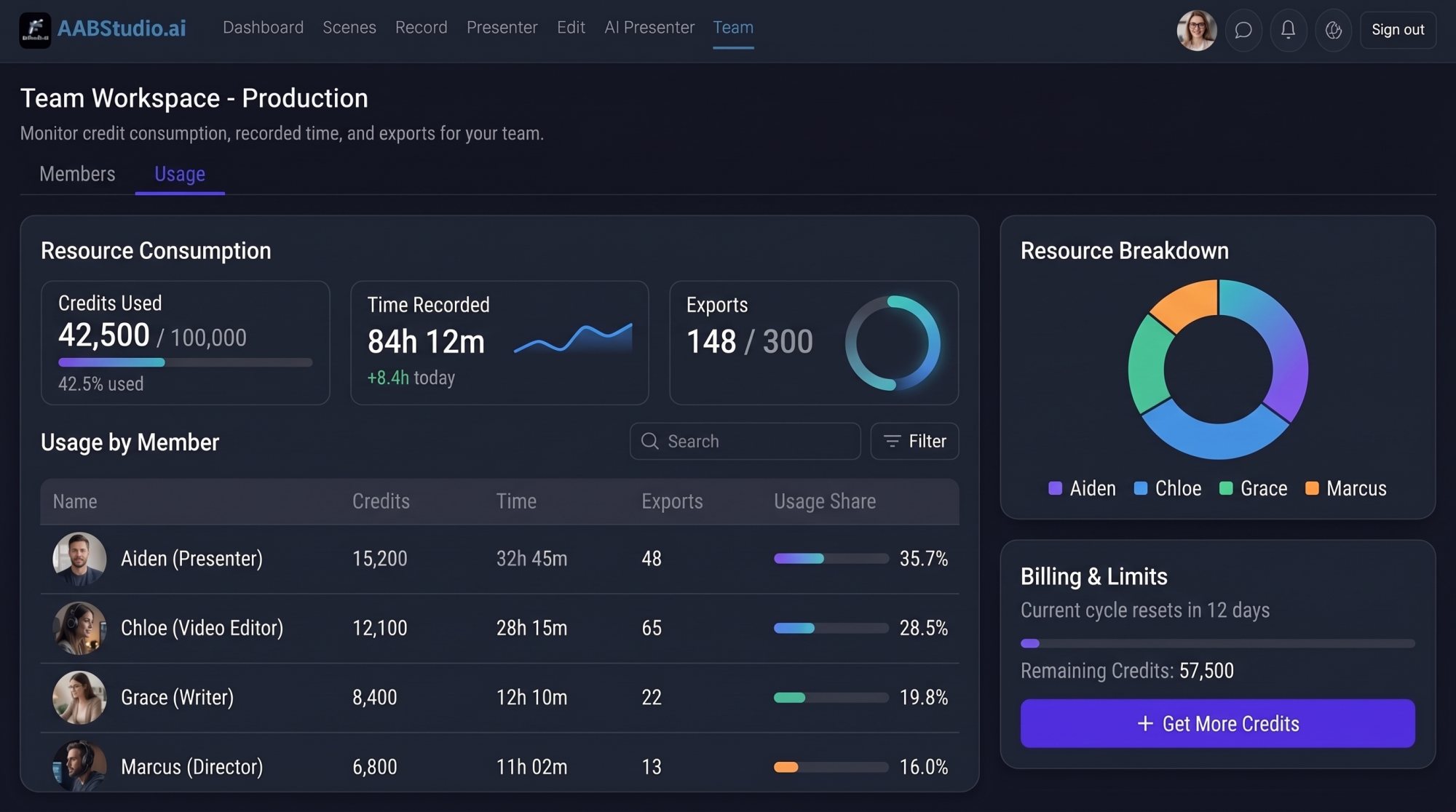
Team owners get a dedicated Team usage page. For any period you choose, compared with the period before, it shows:
- Credits used and credits left
- Time recorded
- Videos exported
- Projects created
- Seats in use
A Team activity over time chart shows the rhythm of the work, and a People list breaks it down person by person, with each member's credits used, share of the team total, time recorded, exports and projects. Sort the list by any of those, or by name. Need it for a report? Click Download CSV and you get one row per person, ready for a spreadsheet.
Only work in team projects is counted, so personal projects stay personal.
Video collaboration in practice: how a team makes a video
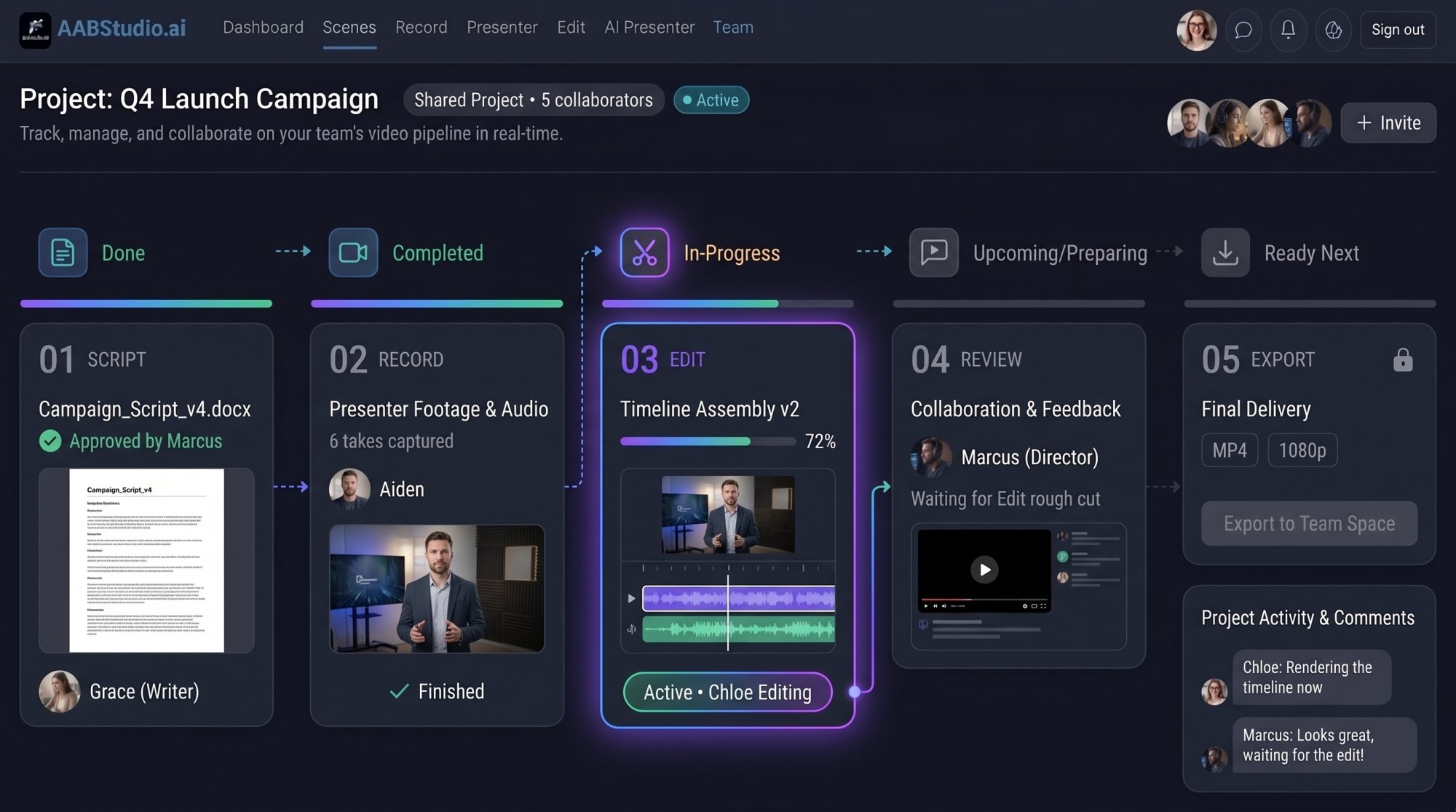
Here is what a typical week can look like when the whole team works in one place:
- The writer drafts the script in the project's Script Writer. Everyone on the team can open it and edit it.
- The presenter records using the teleprompter, reading the script with the words scrolling beside the camera. On a paid plan the takes go straight into the same team project as scenes.
- The editor opens the Edit Suite for that project, where the takes are already on the timeline in order, then trims them and adds music and captions.
- The team reviews together. On the Presenter Screen, anyone can play a recorded scene on a big screen and draw notes straight onto it from their phone, circling the moment that needs a retake.
- Someone exports the final video in landscape, vertical or square, and everyone can see the result.
No files emailed back and forth. No "which version is this?". Everyone always works on the latest version of the same project.
Built in control and safety
A shared workspace only works if it is safe. Studio Team is designed so the owner always stays in control.
- Only the owner can invite or remove people. Removing someone takes effect straight away: they lose access to every team project, and their seat is freed.
- Team projects belong to the team. Projects created inside an active team stay with the team, even if the person who made them leaves. Your work never walks out of the door.
- Personal projects stay personal. Anything a member made before joining is not shared.
- One team at a time. Each person can belong to one team, which keeps access clear.
- Seats are counted honestly. Members and pending invites both count towards your seats, and the Seats card always shows how many are free.
- The owner never loses access. If the subscription ends, members lose team access, but the owner keeps every team project. Subscribe again and the team becomes active once more.
Who Studio Team is for
Studio Team suits any group that needs simple, organised video collaboration:
- Marketing teams producing weekly social videos, product updates and ads.
- Agencies making videos for several clients, with writers, presenters and editors working side by side.
- Schools, colleges and training teams building lessons and courses together.
- Startups whose founders record pitches, demos and updates with a small team.
- Churches, charities and community groups recording messages and events with volunteers.
- Creators with an editor or assistant who need to share projects without sharing a password.
Studio Team or an individual plan?
If you make videos on your own, an individual plan is all you need. Choose Studio Team when you need real video collaboration:
- more than one person works on the same videos,
- you want one bill instead of several accounts,
- you want to see who used what each month,
- you want projects to stay with the business when people come and go,
- or every person on the team needs the Presenter Screen.
Questions people ask
How many people can join?
Studio Team includes three seats, including the owner. You can add more seats from Billing at any time.
Do members need to pay?
No. Members get every Studio Team feature and use the shared credits, both paid for by the owner.
Can a member invite other people?
No. Only the owner can invite and remove members, which keeps the team secure.
What happens to projects when someone leaves?
Team projects stay with the team. The person who left loses access to them.
Can I pay yearly?
Studio Team is billed monthly at the moment. Organisations that need yearly invoicing can send an enquiry from the Enterprise page.
Is there a way to see who spent our credits?
Yes. The owner's credit history tags every credit with the member who used it, and the Team usage page shows each person's share.
Bring your team into one studio
Great videos are rarely made alone. Give your writers, presenters and editors one shared place for video collaboration, one pool of credits and one clear picture of who is doing what. See Studio Team on the pricing page and invite your first teammate today.
Want to go deeper into the tools your team will use every day? Read our guides to the free online teleprompter that follows your voice and to using your phone as a presentation remote that draws on the big screen.
Share this post
Was this post helpful?
Rated 5 out of 5 by 1 reader.



Comments