Your Phone as a Presentation Remote That Draws on the Big Screen
Leave the clicker behind. Use your phone as a presentation remote to draw, highlight, point and change slides live on the big screen, then record polished talks one slide at a time with the Presentation Studio.

In this post
- The problem with clickers and laptops
- What the Presenter Screen is
- Connect your phone in under a minute
- Seven tools when you use your phone as a presentation remote
- Slides, videos and full screen
- Record a polished talk with the Presentation Studio
- Step 1: Prepare
- Step 2: Record
- Step 3: Review
- Who uses it
- Live or recorded: which one do you need?
- Which plans include it
- Questions people ask
- Present the way great speakers do
Picture the last presentation you sat through. The speaker was probably stuck behind a laptop, clicking to the next slide, pointing vaguely at a chart with a hand nobody could follow, and saying "as you can see here" while nobody could see anything. There is a better way, and it starts with using your phone as a presentation remote.
Now picture something different. The speaker walks freely around the room. With a phone in one hand, they circle the number that matters, draw an arrow to the trend line, underline the key word with a highlighter, and flick to the next slide, all live on the big screen. The room follows every point.
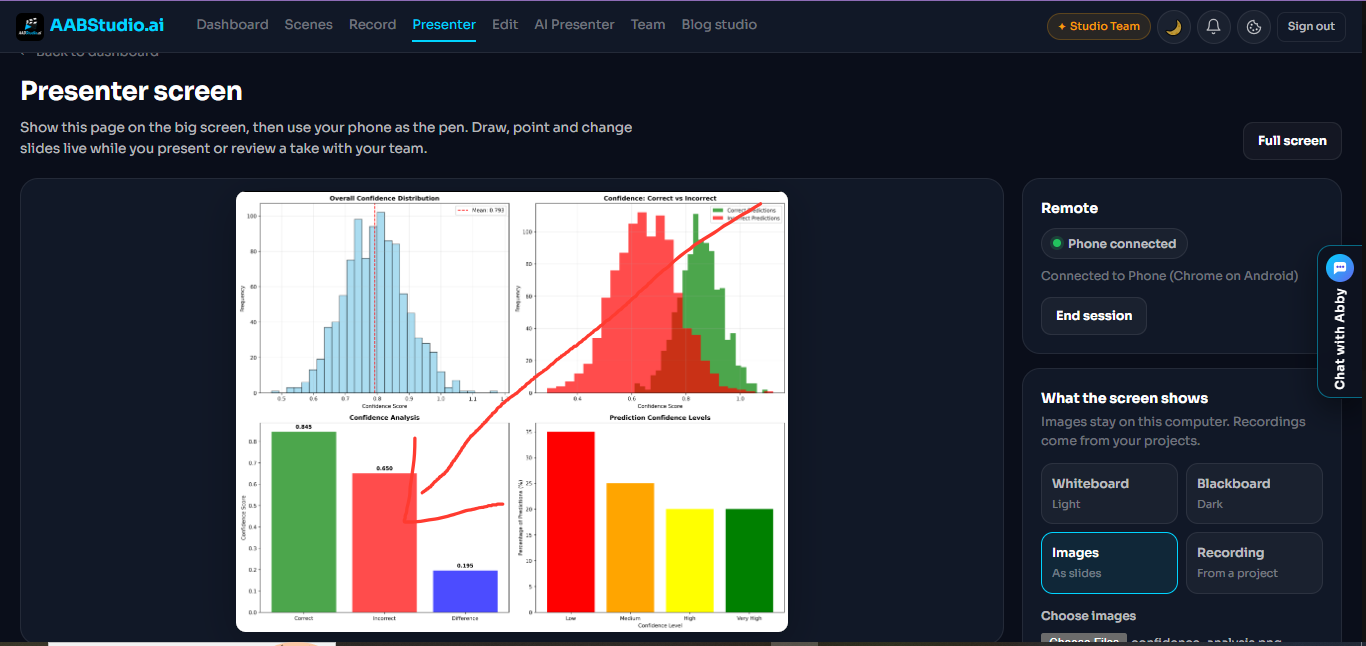
That is what the AABStudio Presenter Screen does. It turns your phone into a pen, a laser pointer and a slide clicker in one, with nothing to install and no gadgets to buy. And when you want to record a talk instead of giving it live, the Presentation Studio records you over your slides, one slide at a time, so a mistake never means starting again.
The problem with clickers and laptops
A traditional clicker changes slides and maybe shows a red dot. That is all. If you want to draw attention to something specific, you either walk back to the laptop or wave at the screen. Teachers know this pain better than anyone: turning their back on the class to write on a board, or standing glued to a desk.
Using your phone as a presentation remote solves both problems. You keep moving, you keep eye contact, and every mark you make appears on the screen the moment your finger touches the glass.
What the Presenter Screen is
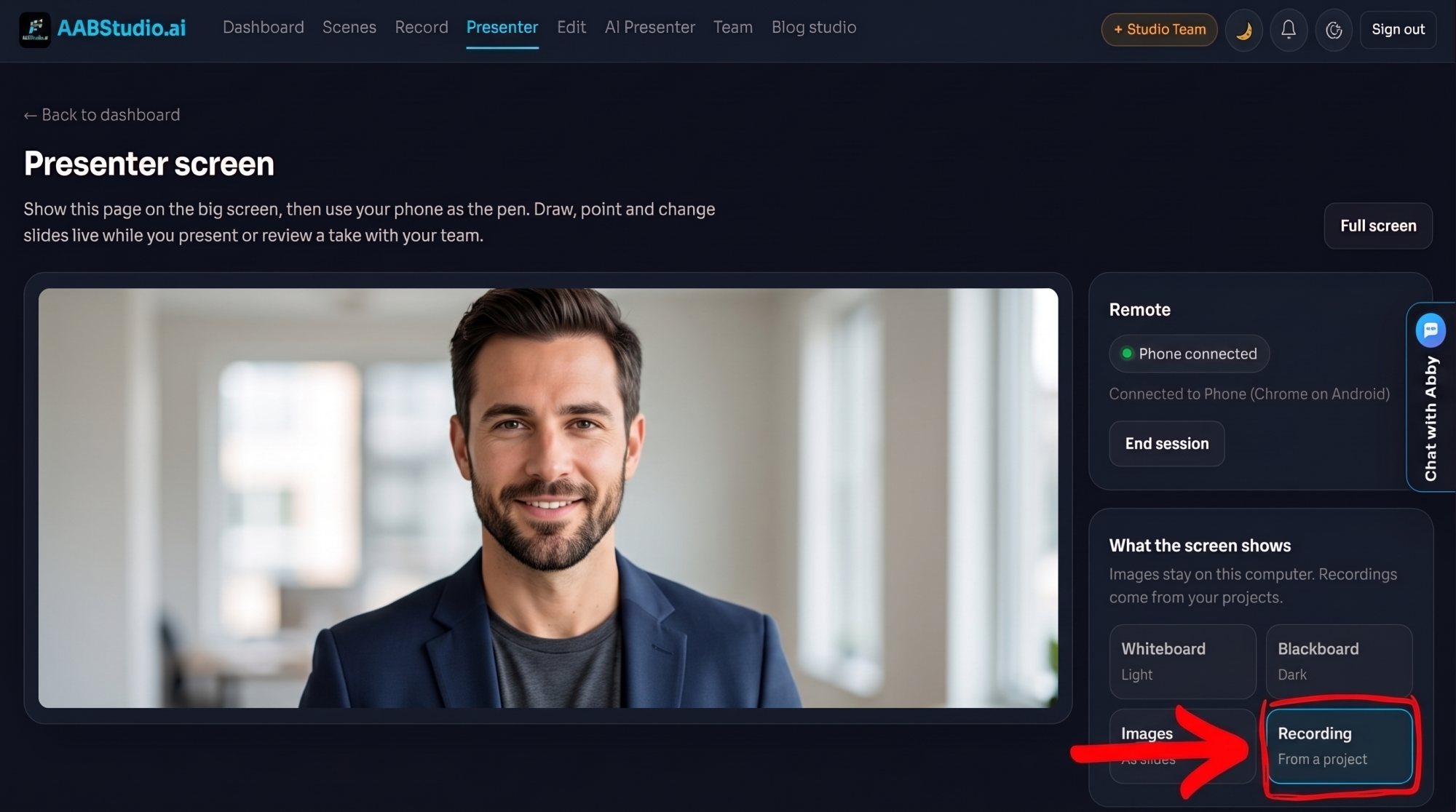
The Presenter Screen is a live presenting page that you open on the big screen: a laptop connected to a projector, a TV, or a monitor in a meeting room. Your phone becomes the controller.
The big screen can show one of four things, and you can switch between them at any time:
- Whiteboard, a clean light canvas for explaining ideas from scratch.
- Blackboard, a dark canvas where white ink really stands out.
- Images, your own slides shown one after another.
- Recording, a recorded scene from one of your projects, so you can play it and draw over it.
Each background keeps its own drawings. Switch from your slides to the whiteboard to sketch an idea, then back to your slides, and everything is exactly where you left it.
Connect your phone in under a minute
- On the big screen, open Presenter from the top menu and click Start session.
- A six digit code appears on the screen, with the address to open on your phone: aabstudio.ai/remote.
- On your phone, sign in to the same account (or an account in the same team) and type the code. It connects the moment the sixth digit goes in.
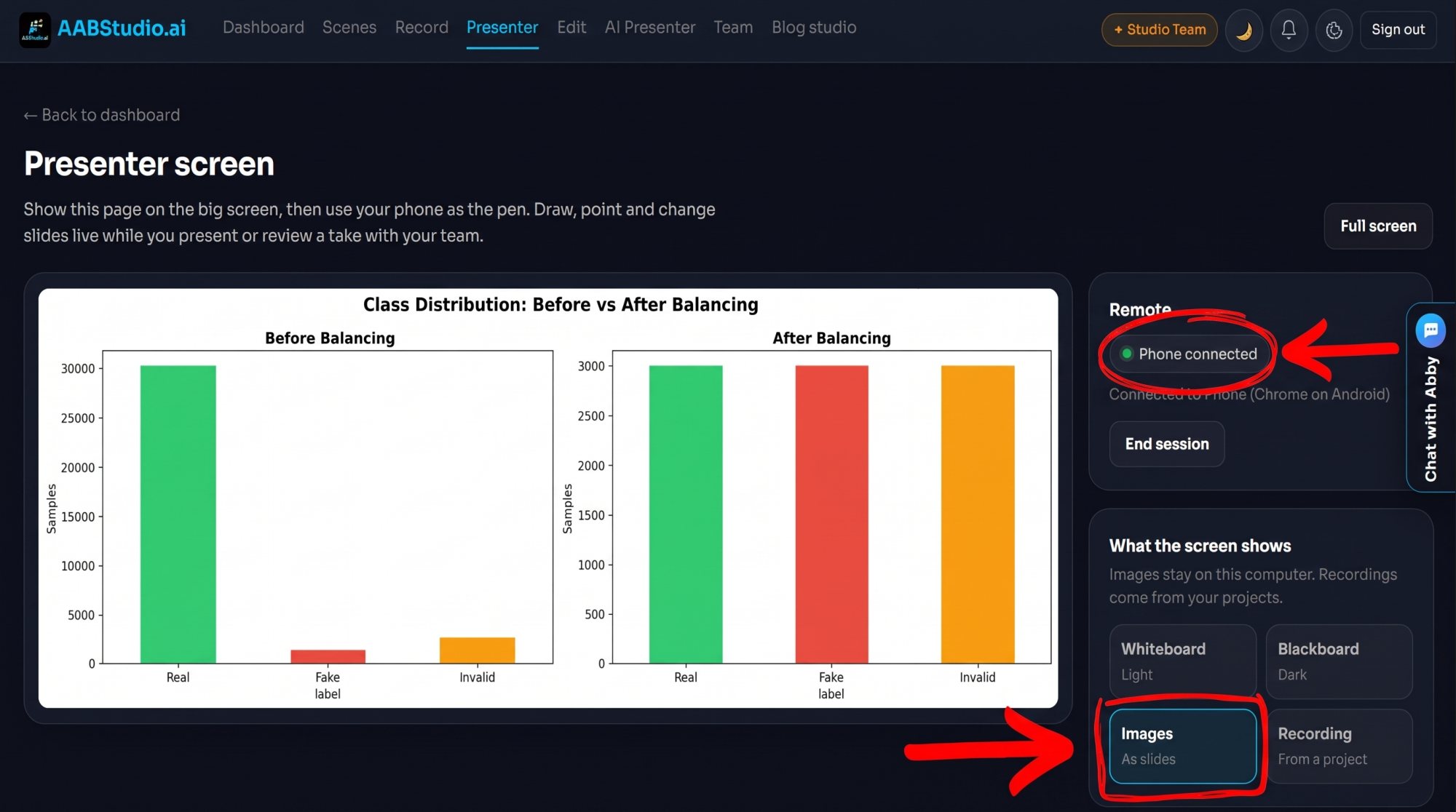
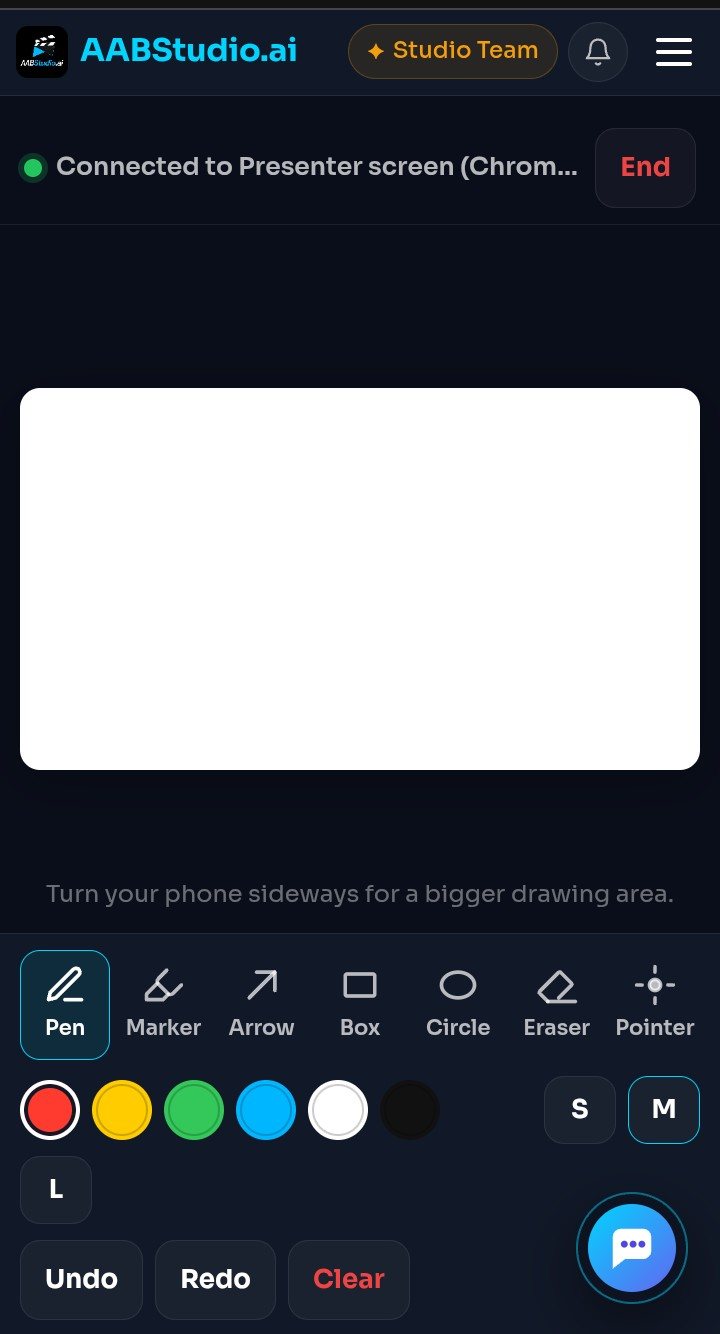
The screen shows Phone connected with your phone's name, and you are ready. The code works for five minutes and only once, so nobody else can join with it later. A session can run for up to twelve hours, and if either page reloads, it carries on with the same session.
Your phone and the big screen do not need to be on the same WiFi. They connect through the internet, so your phone can be on mobile data while the screen is on the venue network.
Seven tools when you use your phone as a presentation remote
Once connected, the phone shows a drawing pad that matches the shape of the big screen. Pick a tool and draw with your finger:
- Pen for writing and freehand sketches.
- Marker, a see through highlighter for words and numbers.
- Arrow to point at exactly what matters.
- Box and Circle to frame an area of a chart or a photo.
- Eraser to rub out part of a drawing.
- Pointer, a glowing red laser dot that follows your finger and disappears when you lift it.
Choose from six colours (red, yellow, green, blue, white and black) and three thicknesses. White on the blackboard looks fantastic. Undo and Redo fix a stray line, and Clear wipes the current slide after you confirm.
Tip: turn your phone sideways. The pad gets bigger and the tools move to the side, giving you far more room to draw.
Slides, videos and full screen
Choose Images, pick your slide images, and each one becomes a slide in order. Change slides from the phone with the arrow buttons, or on the computer with the arrow keys. Your images stay on your computer and are never uploaded, which is ideal for confidential material.
Got a PowerPoint or Keynote deck? Export the slides as images (one PNG or JPEG per slide) and choose them all at once. Up to 200 images can be used in one session.
Press F or click Full screen and only the slide fills the screen, with every control hidden. The phone keeps working in full screen. The page also asks the screen to stay awake while you present, where the device allows it.
Want to keep what you drew? Click Save snapshot and a picture of the current slide with its drawings downloads to your computer, ready to share with the audience afterwards.
Record a polished talk with the Presentation Studio
Live is wonderful, but sometimes you need a video: a course lesson, a product demo, a recorded pitch for investors, or training for a team spread across time zones. That is where the Presentation Studio comes in. It records your camera and your slides together, one slide at a time, in three simple steps.
Step 1: Prepare
Add your slides by dragging files onto the page. It accepts images, PDF files and videos. Each PDF page becomes its own slide, so a 20 page deck exported from PowerPoint, Keynote or any slide app becomes 20 slides in seconds. Add blank whiteboard or blackboard slides for live explanations. Write speaker notes for every slide, up to 10,000 characters each, and put the slides in order. A presentation can hold up to 300 slides.
Step 2: Record
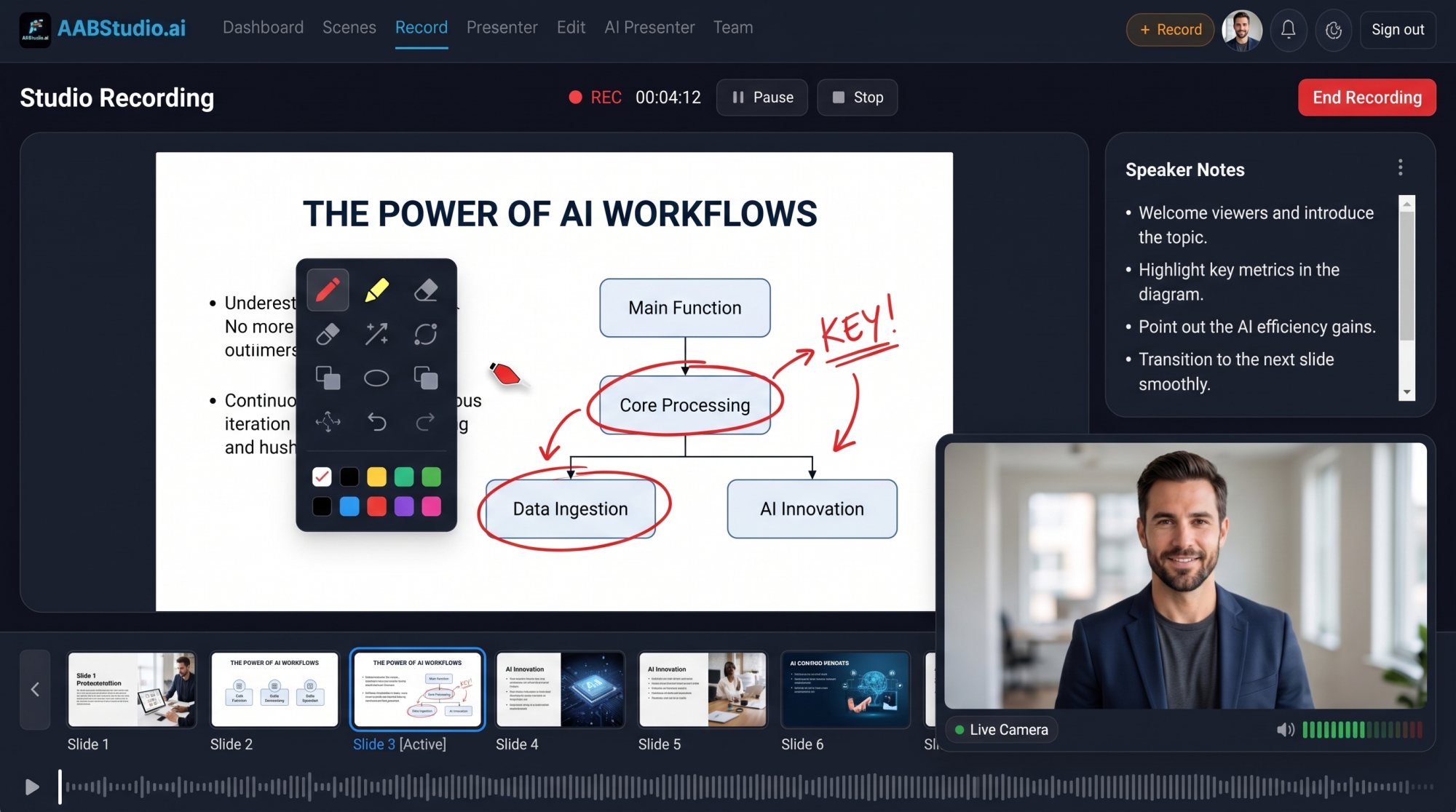
Turn on your camera and microphone, choose the right devices, and watch the level bar to check your sound. Press Record (or the R key), talk through the slide, draw over it with the mouse or your phone, and press again to stop. Your speaker notes sit above the slide where you can see them, and they are never recorded.
Here is the clever part: every slide is its own take. Stumble on slide 7? Press M to mark the mistake, then record slide 7 again. Slides 1 to 6 are untouched. No more restarting a twenty minute talk because of one wrong word.
Connect your phone and it becomes a recording remote too: start and stop, move to the next slide, mark a mistake, and read your notes for the current slide right there in your hand.
Step 3: Review
Watch every take, approve the best one for each slide, and mark any that need redoing. Each slide shows its status at a glance: not started, recorded, approved or needs retake. When you go back to record, a bar tells you exactly which slides are waiting.
When you are happy, click Send to the Edit Suite. Each slide's chosen take lands on the main video track in order, and your camera lands on its own presenter track in the corner. Because camera and slides are recorded as separate files, you can move and resize your camera box later. Then add music, captions and export as MP4 or MOV in landscape, vertical or square.
Who uses it
- Teachers and lecturers who want to face the class while writing on the board.
- Sales teams walking a client through a proposal, circling prices and timelines live.
- Founders rehearsing and recording investor pitches slide by slide until each one is right.
- Trainers and coaches building course lessons without expensive recording software.
- Event speakers and faith leaders who want to move freely on stage.
- Reviewers and editors who play a recorded scene and draw notes straight onto it for the team.
Live or recorded: which one do you need?
Use the Presenter Screen when people are in the room or on a call with you right now. Nothing is recorded; you present, draw and point live.
Use the Presentation Studio when you need a finished video. It records you over your slides, one take per slide, ready for the Edit Suite.
Both use the same phone remote, so once you have learned one you know both.
Which plans include it
The Presenter Screen, the Presentation Studio and the phone remote are included with the Pro Studio and Studio Team plans, and every active member of a Studio Team gets them too. Recording presentations does not use any credits, however many slides or takes you record. You can compare the plans here.
Questions people ask
Do I need to install an app on my phone?
No. Open aabstudio.ai/remote in your phone's browser, sign in and type the code.
Can I show a PowerPoint file directly?
On the Presenter Screen, export your slides as images first. In the Presentation Studio, save your deck as a PDF and each page becomes a slide.
Can two phones control the screen at once?
Each session connects one phone. To switch phones, end the session and start a new one.
Does the Presenter Screen record my talk?
No. It is for live presenting. Use Save snapshot to keep pictures of your slides, or use the Presentation Studio to record a video.
Are my slides uploaded?
On the Presenter Screen, no: images stay on your computer for as long as the page is open. In the Presentation Studio, slides are uploaded to your project so your recordings can be built from them.
Present the way great speakers do
The next time you stand in front of a room, leave the clicker behind. Open the Presenter Screen, connect your phone, and draw your ideas onto the big screen as you speak. When you need a recorded version, the Presentation Studio gets you there one slide at a time. See the plans that include it.
Recording to camera with a script? Read our guide to the free online teleprompter that follows your voice. Working with a team? See how Studio Team brings video collaboration into one shared workspace.
Share this post
Was this post helpful?
Be the first to rate it.

Comments